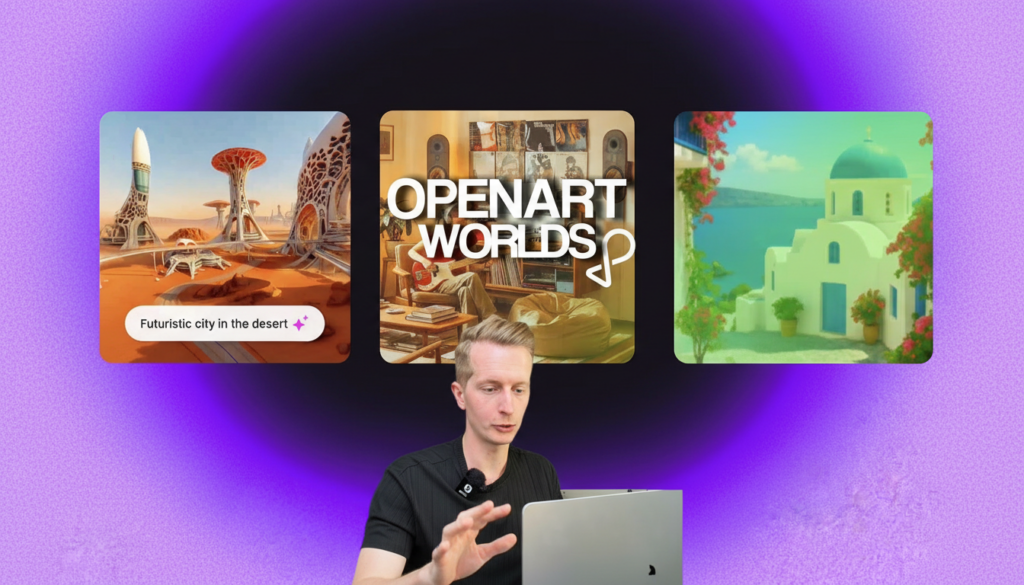
I just built a whole world from a prompt and I can actually move through it. No game engine. No 3D modeling software. Just a text prompt.
Also read: Creators Kept These Websites to Themselves, Now They are Public
This is OpenArt Worlds, and it might be the coolest AI feature I’ve tested this year.
What Is OpenArt Worlds?
OpenArt Worlds lets you type a prompt and generate a full 3D environment that you can walk around in, explore, and even populate with people or objects.
Think of it as your own virtual studio where you’re not just prompting anymore. You’re directing.
Here’s the video breakdown (read further if you want to see the next steps in text form).
How to Create Your First 3D World
Here’s the step-by-step process I use every time. Before you check all the steps, go sign up to OpenArt.
Step 1: Start with a Panoramic Preview
Before jumping straight into a full 3D world, use the panoramic photo view first. This gives you a flat preview of what your environment will look like without burning through your credits.
Think of it as a quick draft before committing to the final piece.
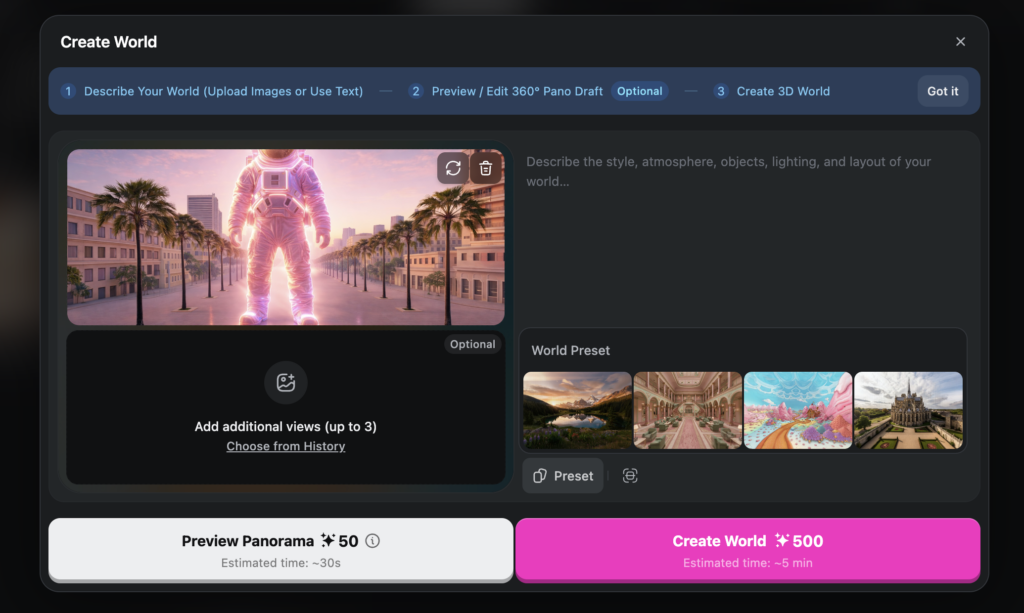
Step 2: Refine Your Prompt
Take a look at the panoramic result. Is it what you imagined? If not, tweak your prompt and regenerate. This is where you dial in the vibe, the lighting, the setting, and all the details before going 3D.
Step 3: Generate the World
Once your panoramic preview looks just right, hit create. OpenArt will generate a full 3D environment you can actually move through. Walk around, look up, explore corners. It’s all there.
Step 4: Add Characters and Objects
Here’s where it gets really fun. You can add yourself or any object inside the world. Upload a real image or generate one with AI and place it directly into the scene. Want to stand in the middle of a futuristic city you just created? Done.
Step 5: Take Snapshots
Once you’ve set up your world, you can take snapshots from any angle. These make for incredible content, thumbnails, or just inspiration for your next project.
Pro Tip: Check the Library First
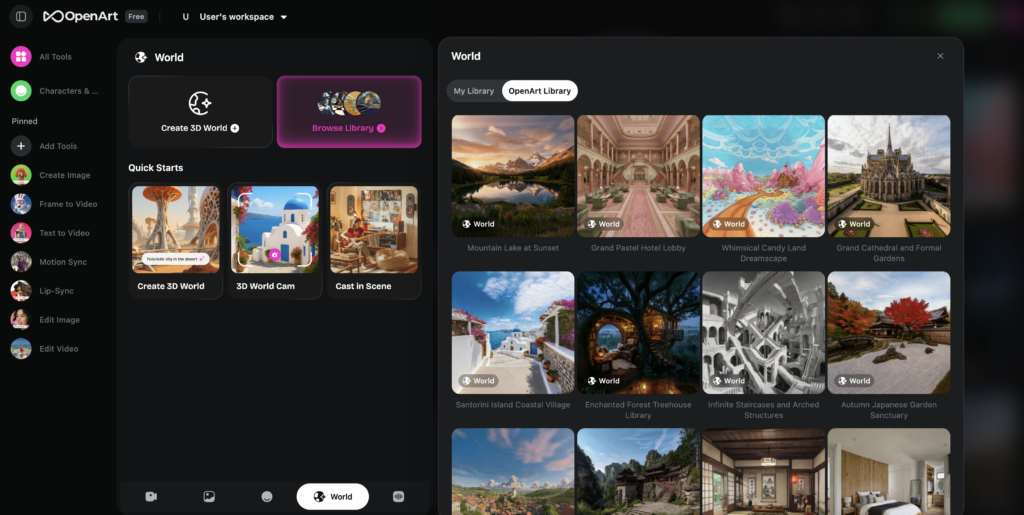
Before you start building from scratch, browse OpenArt’s library for inspiration. You’ll find the best examples from other creators, which can spark ideas for your own worlds and help you understand what kind of prompts produce the best results.
Why This Matters for Creators
This is not just another AI image generator. You’re stepping inside what you create.
Read more: Top Image Upscaling (Enhancing) Prompt For Nano Banana Pro
Whether you’re a content creator looking for unique visuals, a filmmaker scouting virtual locations, or just someone who loves experimenting with AI, OpenArt Worlds gives you something that feels genuinely new.
You’re not prompting anymore. You’re a director with your own virtual studio.