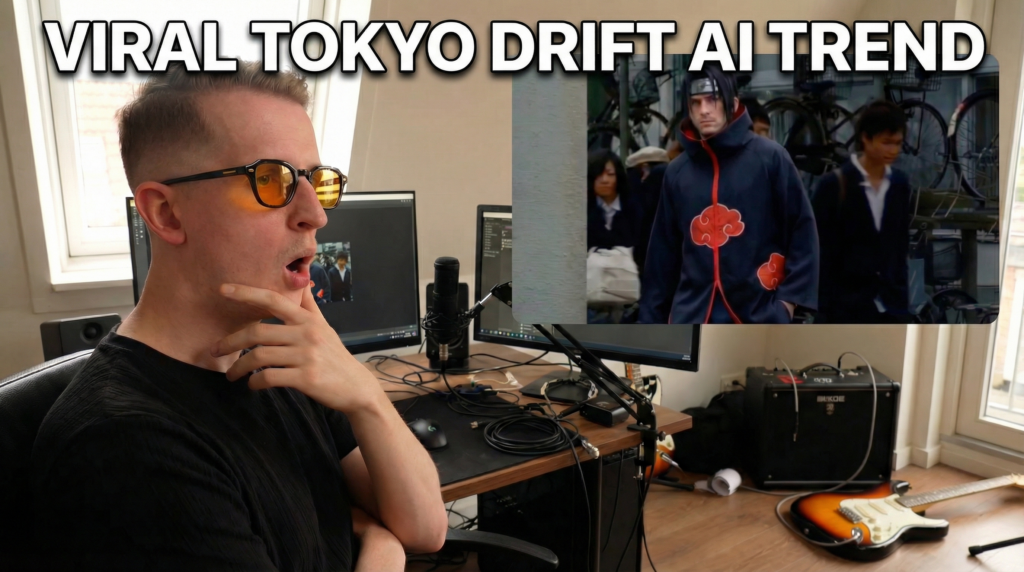
This Tokyo Drift trend is taking over social media right now (and for good reason). People are swapping characters into the iconic Fast & Furious Tokyo Drift scene using AI, and the results are absolutely insane.
Think Jon Snow walking through a school hallway or Daenerys Targaryen standing next to a dragon in the middle of a Japanese street — all looking photorealistic.
Everybody was posting these videos but no one showed you how to recreate this, so here’s a full step-by-step breakdown of exactly how it’s done — including the exact prompts you need.
Here are the best examples if you wanna check below.
What You’ll Need
- Nano Banana Pro (inside Freepik) – for AI image generation and character swapping
- Kling 3.0 Omni (also inside Freepik) – for turning your generated image into a video
- The original Tokyo Drift clip (or any scene you want to remix)
That’s it. No Photoshop. No After Effects. No design skills required.
Here’s a video tutorial in case you prefer visual explanation.
@aitrendz.xyz Anybody can do this inside Freepik! If you want a detailed tutorial with prompts, check my article on aitrendz.xyz under “Blog” This Tokyo Drift trend is going crazy right now! Everybody was making these videos, but nobody made a tutorial, so here’s how I did it inside of @Freepik ✨ STEP 1: Take a screenshot of the original clip and a photo of your character, then merge them in Nano Banana Pro inside Freepik PROMPT: Replace main character in photo 1 with person in photo 2 STEP 2: Use Kling 3.0 Omni to generate the video by uploading the original scene video and your generated image PROMPT: Replace the main character in @video1 with the person from @image1 Have fun and follow me for more AI tutorials 🙌 #freepikpartner #freepik #viral #viraltrend #aitrend ♬ original sound – René Remsik
Step 1: Take a Screenshot from the Original Video
Find the Tokyo Drift scene you want to use (or really any cinematic clip). Pause it at the exact frame you want to transform and take a clean screenshot.
This screenshot becomes the reference image that the AI will use to understand the scene composition — the camera angle, lighting, background, and character positioning all matter.
Step 2: Generate Your Character Swap in Nano Banana Pro
Head over to Nano Banana Pro inside Freepik. Upload your screenshot along with a photo of the character you want to insert, then use a prompt to merge them.
The Simple Method
If you just want a quick character swap, upload both images and use this prompt:
PROMPT: Replace main character in photo 1 with person in photo 2
This works great for straightforward face and body swaps where you want to keep the scene exactly as it is.
The Advanced Method — Custom Character Prompts
If you want to go beyond a simple swap and fully transform characters (like turning someone into a Game of Thrones character), you’ll need a more detailed prompt. Here are two real examples that have been producing incredible results:
Jon Snow — Hallway Scene
Use the exact same hallway scene composition from the reference image. Maintain the same camera angle, same framing, same background students, same lighting, same depth of field, and same body posture of the central character.
Transform the central man into a rugged northern warrior-inspired character. Keep the same pose and body position.
Replace his hairstyle with long, thick, wavy dark hair that falls to the shoulders. Natural curls, realistic texture, slightly messy but heavy volume.
Add subtle facial hair — short rugged beard and light stubble.
Replace the school uniform with a dark fur cloak draped over the shoulders, layered leather armor underneath, cross chest straps, realistic worn texture.
Maintain photorealistic human skin texture with visible pores. Lighting must match the hallway environment. The warrior look must feel naturally integrated into the modern hallway scene.
Cinematic realism, high detail, film still quality.
Daenerys Targaryen — Street Scene with Dragon
Use the exact same Japanese urban street scene composition and camera angle as the reference image. Maintain the same perspective, same framing, same crowd placement, same background buildings, same lighting, same cinematic film still look.
Replace the orange sports car with a massive realistic black dragon positioned in the exact same location and angle as the car. The dragon should be grounded naturally on the street, body aligned parallel to the road like the car was. Wings partially folded but large and dominant, textured dark scales with subtle red undertones, sharp horns, muscular tail extending backward following the car’s original length. Realistic shadows under the dragon touching the asphalt. Natural integration with environment, not fantasy overlay.
Replace the man leaning against the car with a regal white-haired warrior woman standing in the same position and same leaning pose angle. Long platinum-white hair with soft braids and loose waves, flowing naturally. Wearing a teal medieval warrior dress with a light cape draped over shoulders. Realistic human skin texture, natural lighting matching the street scene. Calm but powerful expression.
Maintain photorealistic style — not cartoon, not CGI fantasy art. The dragon must look physically present in the real urban environment with proper scale and lighting interaction.
Cinematic, high detail, film still, shallow depth of field, dramatic but realistic color grading.
Pro Tips for Better Results
- Be specific about what stays the same. The more you tell the AI to preserve (camera angle, lighting, background, posture), the more cohesive the final image looks.
- Describe textures and materials in detail. Words like “worn leather,” “realistic pores,” and “natural shadows on asphalt” push the AI toward photorealism instead of generic CGI.
- Always end with a style anchor. Phrases like “cinematic realism, film still quality” keep the output grounded and consistent.
Step 3: Bring It to Life with Kling 3.0 Omni
Now for the magic part — turning your static image into a moving video.
Open Kling 3.0 Omni and upload two things:
- The original video clip (your Tokyo Drift scene)
- The AI-generated image you just created in Nano Banana Pro
Then use this prompt:
PROMPT: Replace the main character in @video_1 with the person from @image_1
Kling will analyze the motion, lighting, and scene dynamics from the original video and apply your new character into the footage — maintaining realistic movement and environmental interaction.
For the Daenerys + dragon version, use:
PROMPT: Replace the car and guy in @video_1 @image_1 with the women and dragon
Why This Trend Works So Well
This isn’t just a filter or a face swap — it’s full scene transformation powered by generative AI. What makes it go viral is the contrast: iconic cinematic scenes reimagined with completely unexpected characters, all looking like they were actually filmed that way.
The Tokyo Drift setting is perfect for this because it’s visually rich, universally recognized, and has strong cinematic energy that the AI can latch onto and preserve.
Quick Recap
| Step | Tool | What to Do |
|---|---|---|
| 1 | Any screen recorder | Take a screenshot from your chosen video clip |
| 2 | Nano Banana Pro (Freepik) | Upload screenshot + character photo, use prompt to generate the swap |
| 3 | Kling 3.0 Omni (Freepik) | Upload original video + generated image, prompt the video generation |
Your Turn
The beauty of this trend is that you’re not limited to Tokyo Drift or Game of Thrones characters. Swap in anyone — yourself, your favorite anime character, a historical figure, whatever your imagination comes up with.
The AI handles the heavy lifting. Have fun creating, and tag me when you post yours. I’d love to see what you come up with! 🫶🏼