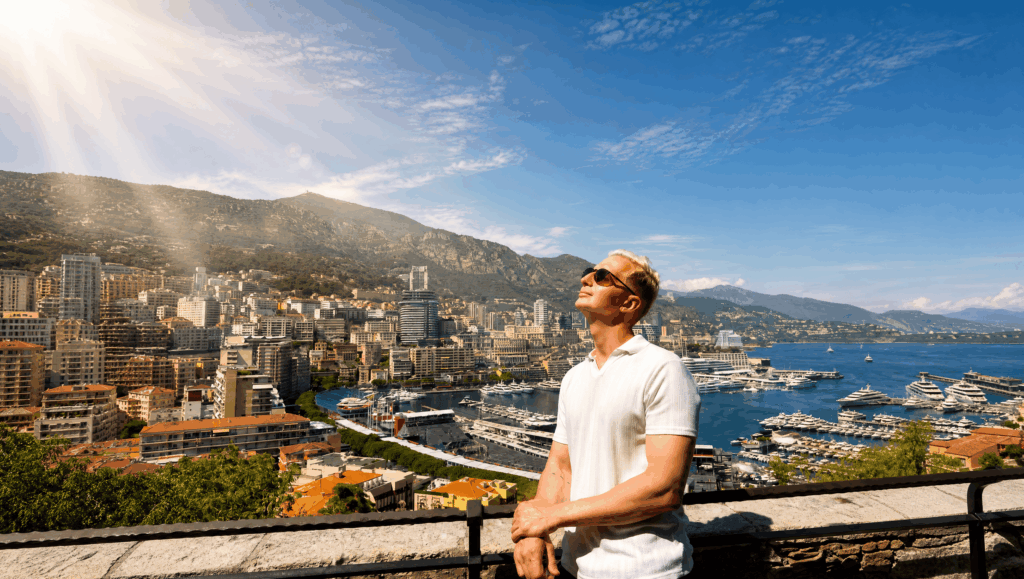
How to Use These
Upload your photo to an AI image generator (ChatGPT, Midjourney, or similar) and paste the prompt that matches the look you want.
Also read: 10 Best Design Prompts You Need To Know
Each one is written to preserve your original composition and subject while transforming the lighting, color, or overall style around it. This list will keep growing, so check back for more prompts.
Color Grading
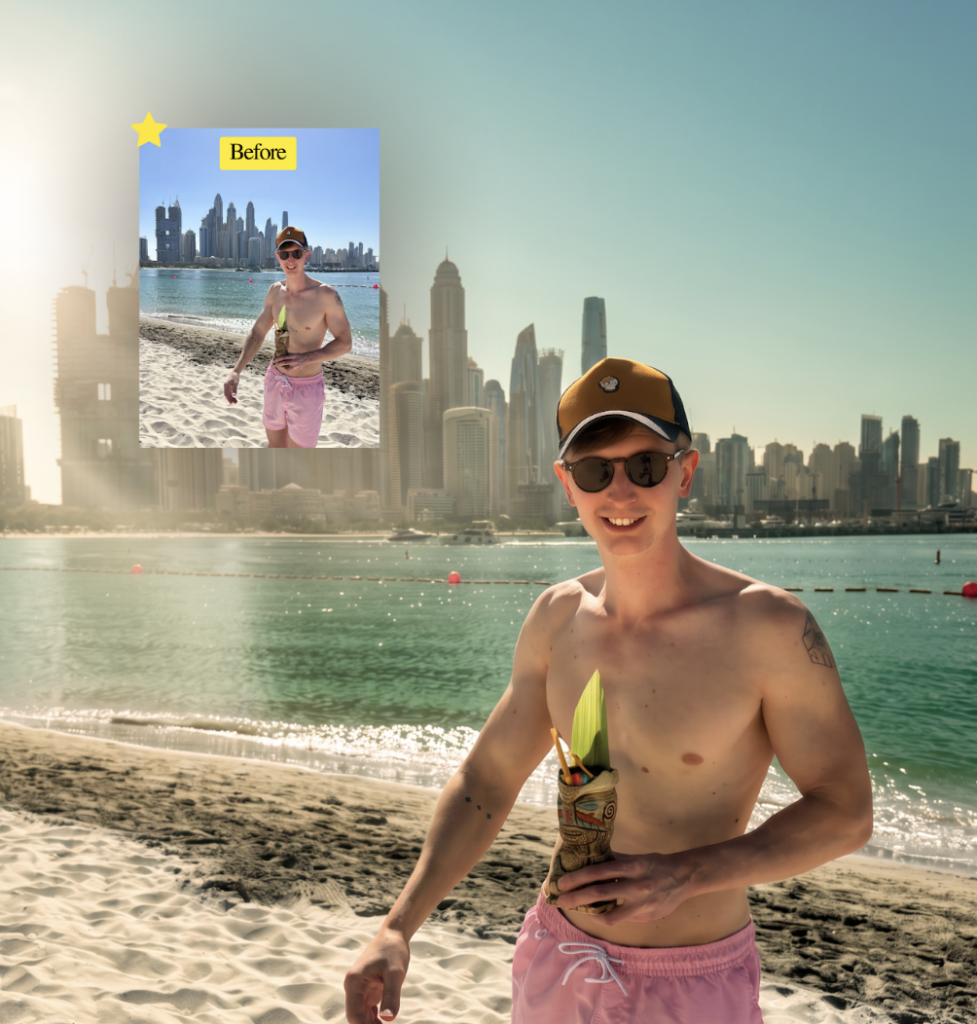
Turns any photo into a cinematic, Lord of the Rings-style sunrise shot. Your pose, expression, clothing, and background stay exactly the same. Only the lighting and color grading change: soft morning god rays, gentle mist, deep greens, and warm golden highlights. The result looks like a genuine sunrise photo, not an AI-generated fantasy scene.
Prompt: Edit this photo into a cinematic The Lord of the Rings style while preserving the original composition, subject, pose, clothing, facial features, expression, camera angle, perspective, framing, and every background element exactly. Transform the lighting into a soft sunrise from the upper left with natural god rays, subtle volumetric lighting, gentle morning mist, and a soft cinematic lens flare. Apply a rich, natural color grade with deep greens, warm golden-hour highlights, a clean blue sky, accurate skin tones, and soft neutral shadows without an orange or yellow cast. Enhance dynamic range, local contrast, texture, and detail to an iPhone 17 Pro Smart HDR look while keeping it fully photorealistic. Create an immersive fantasy atmosphere inspired by The Lord of the Rings that still looks like a genuine sunrise photograph, not AI-generated artwork.
Golden Hour With Glowing Text
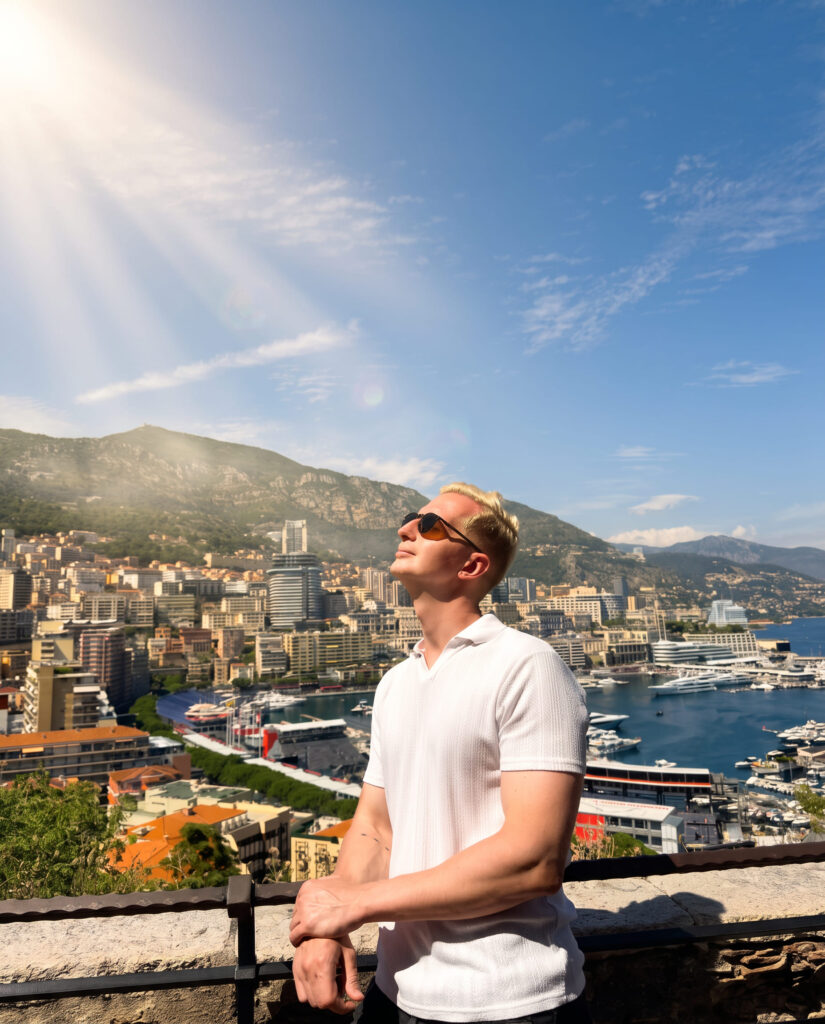
Applies a cinematic golden-hour glow to any photo with a sunset sky, and adds elegant glowing text above the subject’s head. Your pose, face, hair, and clothing stay untouched. The sky and lighting get the transformation, plus a premium branded text overlay.
You can swap “Golden Hour” for any word or short phrase you want to appear in the image.
Prompt: Apply a soft cinematic golden-hour glow while preserving the original composition exactly. Enhance the sky, clouds, and sea with rich yet natural deep blue, soft pink, warm orange, and golden sunlight, creating a realistic sunset with smooth color transitions. Add a subtle warm light wrap around the subject without changing their pose, facial features, hairstyle, clothing, body shape, or any original details. Add elegant glowing serif text “Golden Hour” centered slightly above and behind the subject’s head, naturally blended into the sky with soft white luminous lettering, subtle bloom, and a refined luxury aesthetic. Keep it realistic, premium, and unobtrusive. Do not add, remove, reposition, or modify any objects. Maintain the original perspective and composition. Render in ultra-high-resolution 8K. Subtly enhance color depth, dynamic range, soft film finish, blur, and fine film grain.
Pixel Stretch Artwork
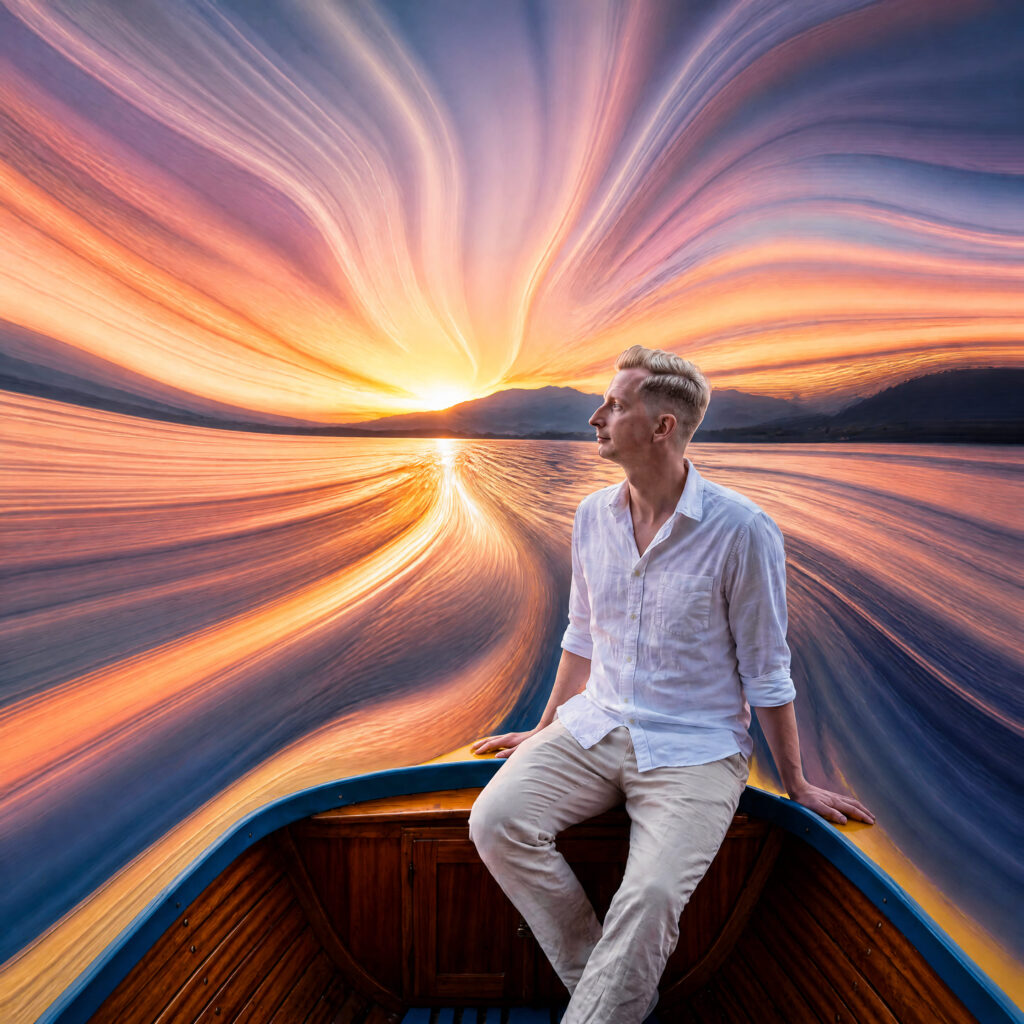
Turns a photo into a modern digital art piece where the subject stays sharp and recognizable while colors and textures extend outward into flowing, ribbon-like pixel stretches. Think of it as a premium Photoshop pixel-stretch effect: silky, fluid streams of color and light flowing off the subject in elegant curves.
Prompt: Transform uploaded image into a premium pixel stretch artwork while keeping the main subject perfectly sharp, detailed, and recognizable. Extract colors and textures from the subject and extend them into smooth, flowing pixel stretch ribbons that follow elegant curves and dynamic motion. Create seamless transitions between the original image and stretched areas, avoiding glitches or harsh edges. The stretched pixels should appear silky, fluid, and organic, like streams of color, light, paint, or energy. Maintain realistic lighting, depth, shadows, and color harmony. Use cinematic contrast, vibrant colors, HDR quality, ultra-sharp details, modern minimalist composition, luxury digital art styling, Adobe Photoshop pixel stretch effect, gallery quality finishing, and ultra-high-resolution 8K for a visually captivating, social-media-ready masterpiece. Keep it minimal, no golden or ornate elements.
Candid Nighttime Blur Shot
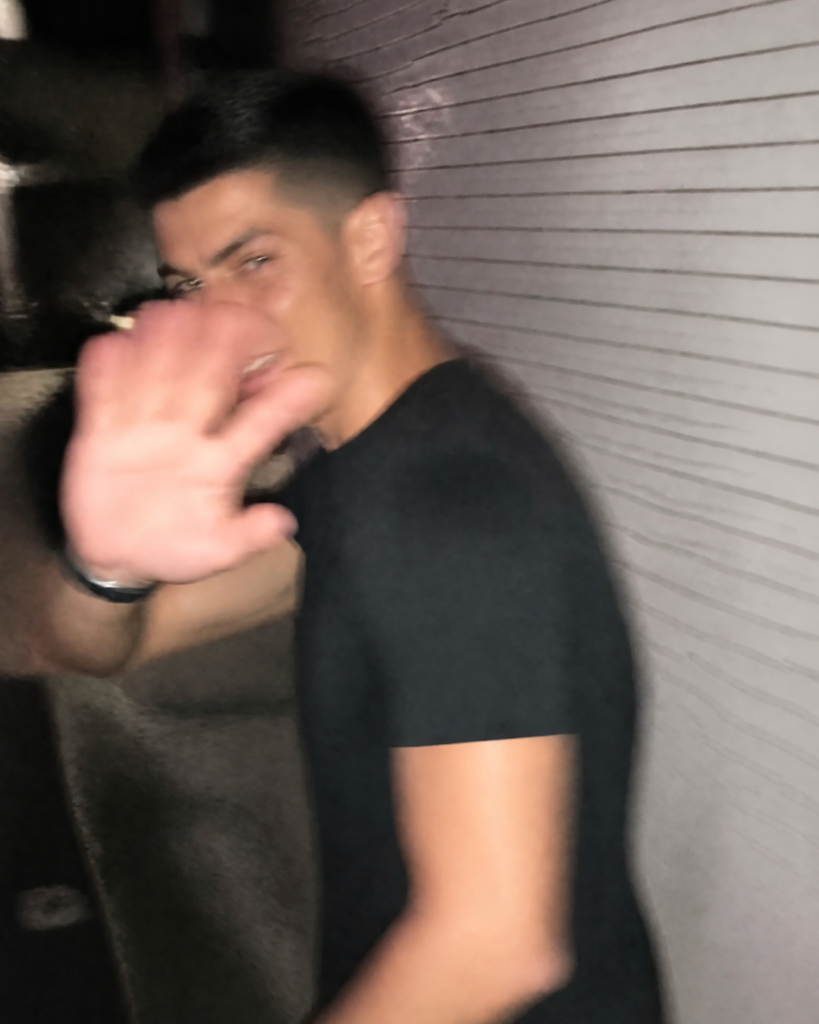
Generates an ultra-realistic candid smartphone photo, the kind that looks like someone accidentally snapped a photo of a stranger walking by at night. Motion blur, harsh flash, imperfect framing, and a shy, caught-off-guard expression. This one uses your reference photo only as inspiration for general appearance, not an exact identity match, so the result is an original, non-identifiable subject with a similar vibe.
Prompt: Ultra-realistic candid smartphone photograph, 9:16 vertical. Use the attached reference image only as a strong visual inspiration for the subject’s overall appearance, body proportions, hairstyle, clothing, and general facial structure, while ensuring the generated subject remains fully original, non-identifiable, and not a face copy or identity match. Preserve only the overall visual essence and vibe, never replicate the exact identity.
Scene: Nighttime on a quiet Tokyo city sidewalk beside a building with white ceramic tile walls. The subject is walking past the camera, partially side-on, captured mid-step in a rushed, accidental moment.
Poses and gestures (combined naturally): The subject reacts instinctively to being photographed. Turning their head back mid-walk as if surprised, raising one hand close to the lens to partially block the camera, a shy, restrained smile forming while suppressing laughter. The body remains angled in half-profile while continuing to walk forward. Natural walking motion causes the subject to drift partially out of frame, creating imperfect composition. Expressions feel subtle, spontaneous, embarrassed, playful, and fleeting, never posed or aware of the camera.
Camera and motion: Shot on a modern smartphone using a handheld camera. The photo feels rushed and accidental. Strong uncontrolled camera shake. Heavy directional motion blur across the raised hand, hair, face, and clothing. Facial features are naturally smeared by movement, only faintly recognizable due to motion blur rather than intentional concealment. Partial ghosting around the moving body. Imperfect framing with the subject nearly exiting the frame.
Lighting: Direct smartphone flash fires during movement. Harsh flash highlights on the skin, clothing, and raised hand. Deep surrounding darkness with uneven exposure, blown highlights, and hard shadows typical of spontaneous nighttime phone photography.
Background: A white ceramic tile wall stretches into streaked light bands from motion blur. The surrounding Tokyo street fades into darkness with only faint hints of buildings and pavement visible. Minimal readable background detail.
Mood: Raw, candid, slightly playful, shy, authentic, and imperfect. The image should feel like an accidental memory captured in a split second rather than a planned photograph.
Image quality: Extremely noisy. Heavy motion blur. Visible camera shake. Smartphone compression artifacts. Imperfect autofocus. Slight overexposure from flash. Low-light grain. Cropped composition. Amateur handheld aesthetic. Absolutely not cinematic, editorial, or professionally photographed.
Negative prompt: anime, illustration, painting, CGI, 3D render, stylized, studio lighting, beauty lighting, soft portrait, sharp focus, clean face, perfect anatomy, flawless skin, fashion editorial, posed portrait, cinematic color grading, film still, tripod shot, DSLR look, professional photography, identity match, face copy, exact likeness, celebrity resemblance, real person replication, overprocessed image, AI beauty filter.
Tips for Better Results
Every prompt above includes specific instructions about what to preserve and what to change. Keep those instructions intact when you paste the prompt. They’re what stops the AI from reinterpreting your entire photo instead of just applying the intended effect.
Read more: 9 Rich Skills You Can Learn for Free
If a result comes out too strong or too subtle, ask the AI to adjust intensity rather than rewriting the whole prompt. Something like “make the motion blur less extreme” or “increase the golden hour warmth” usually works.
If you want to explore more AI tools, check our homepage. Or visit the Blog for more prompts and tutorials like this one.