
The Viral Playbook
Flying car videos are pulling in millions of views online right now. The format is simple: a normal traffic jam, a button press, and a car that lifts off. People watch it, share it, and send it to friends.
Then another trend comes tomorrow, then another one later, etc. You don’t even have to look for them. If you open your Instagram feed, you’ll see these extremly viral videos easily.
Also read: We Found the 10 Best Prompts After Generating 47,209 AI Images
Here’s how to use a trend like that for your own product. Instead of making an ad from scratch and hoping people care, you recreate a video people already want to watch and put your product inside it. The whole process takes under a minute of your own work, because AI does the analysis and the generation.
What You Need
A viral video you want to recreate, a character reference sheet, and your product. Everything else happens inside the CapCut PC app, so you do not have to jump between several tools.
Step 1: Download the CapCut PC App
Download CapCut for PC. Using one app for the whole workflow saves time and keeps your files, references, and generations in one place.
Step 2: Analyze the Viral Video
Go to Video Studio and upload the viral video you want to recreate. Then paste the analysis prompt below. It makes the AI break the video down like a director would, then write a generation prompt for the Seedance video model that recreates it as closely as possible.
Analysis prompt: Analyze this video like a director breaking down subject and action, setting, camera (shot size, angle, movement, lens feel), lighting and time of day, color grade and mood, pacing and transitions, visual style, and anything distinctive that makes it recognizable. Then write one generation prompt for Seedance AI video model that recreates it as closely as possible, leading with camera and subject, describing the action as a timeline, and ending with style and lighting, without adding anything you couldn’t see in the frames.
The last part of that prompt matters. Telling the AI not to add anything it could not see in the frames keeps the new prompt grounded in the real video instead of invented details.
Step 3: Upload Your Character Sheet
Next, upload your character sheet. You can create one right inside the CapCut PC app. A character sheet shows your character from several angles, which helps the AI keep the same face and outfit throughout the video.
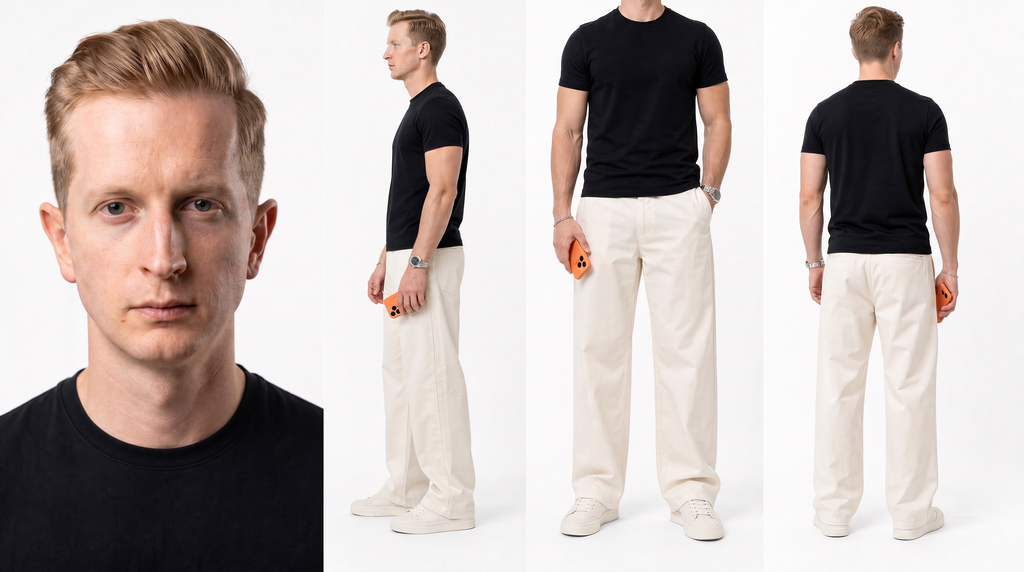
Step 4: Add Your Product to the Prompt
Here is the part that turns a trend into an ad. Add your product directly into the prompt. In my example, I used a made-up drink brand and had me grab the can mid-air and says how dope it is. This specific video is not viral, it’s just made for the purpose of showing what you can do.
Here is the full prompt I used to make my video. Swap the brand, product, character, and vehicle for your own.
Setup: Create an original 12-second hyper-realistic cinematic vertical video using the provided character, Harmon can, and vehicle references. Preserve the character’s identity and clothing, the Harmon can’s readable design and proportions, and the vehicle’s exterior and interior design consistently.
Shot 1 (0:00 to 0:01): Inside the vehicle in a congested city street, the character casually presses an illuminated button on the center console. A Harmon can is visible in the cup holder. Natural handheld interior camera, wide-angle lens, soft clean lighting. Sound: mechanical click.
Shot 2 (0:01 to 0:04): Exterior low-angle wide shot. The vehicle blasts vertically upward with powerful white jet plumes and performs a controlled backflip over the city traffic. Overcast daylight, cool desaturated colors, smoke, realistic motion blur, dramatic camera tracking.
Shot 3 (0:04 to 0:09): Inside the car while it is fully upside down in mid-air, time suddenly freezes. The car, city, drink droplets, smoke, and all surroundings remain perfectly motionless. Only the character can move naturally. He calmly reaches for the floating Harmon can, takes it in his hand, looks directly at the camera, and says with a high-energy confident American accent: “I got you! Drink Harmon in every crazy situation. It’s dope, like you.” Keep the can label facing the camera and clearly readable. Add a subtle push-in toward the character during the line. No background music over the dialogue.
Shot 4 (0:09 to 0:12): Immediately after the line, time resumes. The vehicle continues spinning through the air and the character screams in surprise. Cut to a rapidly zooming-out exterior shot of the vehicle rotating above the traffic, with jet smoke, wind, and dynamic motion blur. Use fast match cuts, hyper-realistic VFX.
Format: 9:16.
Model: Seedance 2.5
Why This Works
The trend gives you attention you did not have to earn. People already like the format, so your ad does not feel like an ad until the product shows up. Then the product is part of the action instead of a logo pasted on top.
Notice how the prompt handles the product. The can sits in the cup holder in the first shot, floats in the frozen moment in the third shot, and the label faces the camera while the character says the brand name. That is three separate chances for viewers to see it, all inside a 12-second video.
The structure also helps the AI. The prompt starts with the references to preserve, then gives a timeline shot by shot with camera, lighting, and sound for each one. That is the same structure the analysis prompt produces, so you can use the analysis output as your starting point and then add your product.
Tips for Better Results
Replace the brand name, the product description, and the spoken line with your own. Keep the instruction about the label being readable, since a blurry label wastes the whole point of the ad.
Also read: Top 30 Camera Angle Prompts for AI Video Generators
Keep the references to preserve at the top of the prompt. Telling the AI to keep the character’s identity, the product’s design, and the vehicle consistent is what stops the details from drifting between shots.
If the full 12 seconds does not generate cleanly, split it into two clips and join them in CapCut. The freeze moment in Shot 3 is a natural cut point.
Use your own product, brand, and characters. A trend works best when the video looks original, and your product is what makes it yours.
If you want to explore more AI tools, check our homepage. Or visit the Blog for more tutorials and prompts like this one.