What This Is
Freepik Spaces lets you chain AI image generation and AI video generation together in one workspace. Instead of jumping between different tools, you do everything in one place: upload a reference, generate images from prompts, and then turn those images into video using motion control.
This workflow is useful when you want to take an existing video and recreate it in a completely different style, with different characters, or in a new setting. Big shoutout to Madeline Salazar (Instagram link) for creating this video style.
Here’s how it works.
Step 1: Go to Freepik Spaces
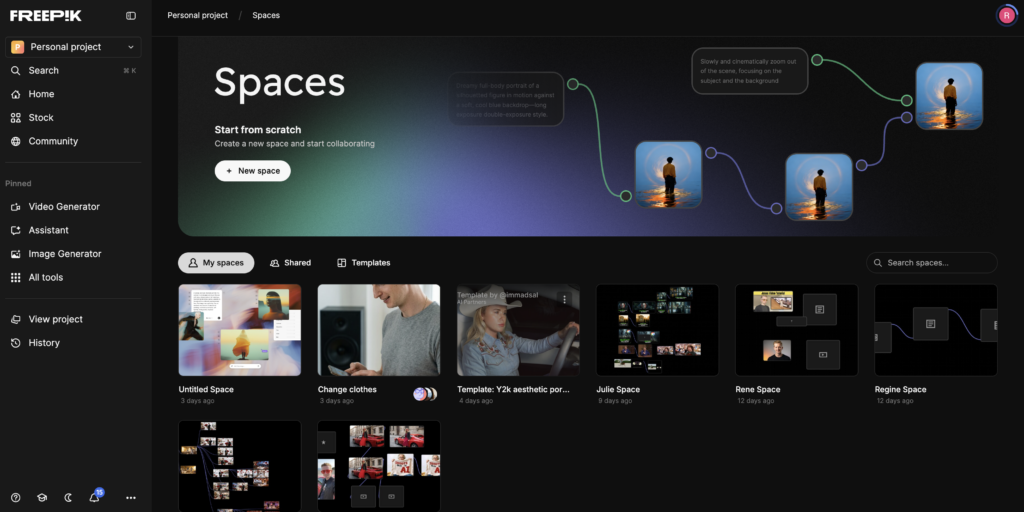
Open Freepik and go to the Spaces section or simply use this template. This is where you set up your workflow. Think of it as a canvas where you connect inputs (your images, videos, and prompts) to AI generation tools.
Step 2: Upload a Screenshot of the First Frame
Take a screenshot of the first frame from your video and upload it to the workspace. This gives the AI a visual reference for what the scene looks like. It helps keep the generated images consistent with the original video’s composition and framing.
Step 3: Add Your Prompts
Click on List and type in your prompt text. You can add prompts for however many images you need. If your video has multiple scenes or angles, write a separate prompt for each one. Each prompt should describe the look, setting, and details you want in that particular image.
Step 4: Generate the Images
Click Image Generate. Select the AI model you want to use and set the aspect ratio to match your video. Then connect your uploaded screenshot and your prompts to the image generation tool. Hit generate. The AI will create images based on your prompts while using the screenshot as a visual guide.
Step 5: Upload Your Video
Now upload the original video to the workspace. This is the video the AI will use as a motion reference. It won’t copy the visuals from the video. It will copy the movement and timing.
Step 6: Generate the Video

Click Video Generation and select Kling Motion Control. Connect your generated images and the uploaded video to the video generation tool. Hit generate.
Kling takes the movement from your original video and applies it to the AI-generated images. The result is a new video that moves like the original but looks completely different.
Here’s the link to the Freepik Spaces.
Why This Works
The key here is that you’re separating the visuals from the motion. Your original video provides the movement data. The AI-generated images provide the new look. Kling Motion Control combines them. This means you can take any video of yourself and turn it into something completely different while keeping all the natural movement intact.
If you want to explore more AI tools, check our homepage. Or visit the Blog for more tutorials and guides like this one.
Here’s another tutorial for a video I made in Freepik.